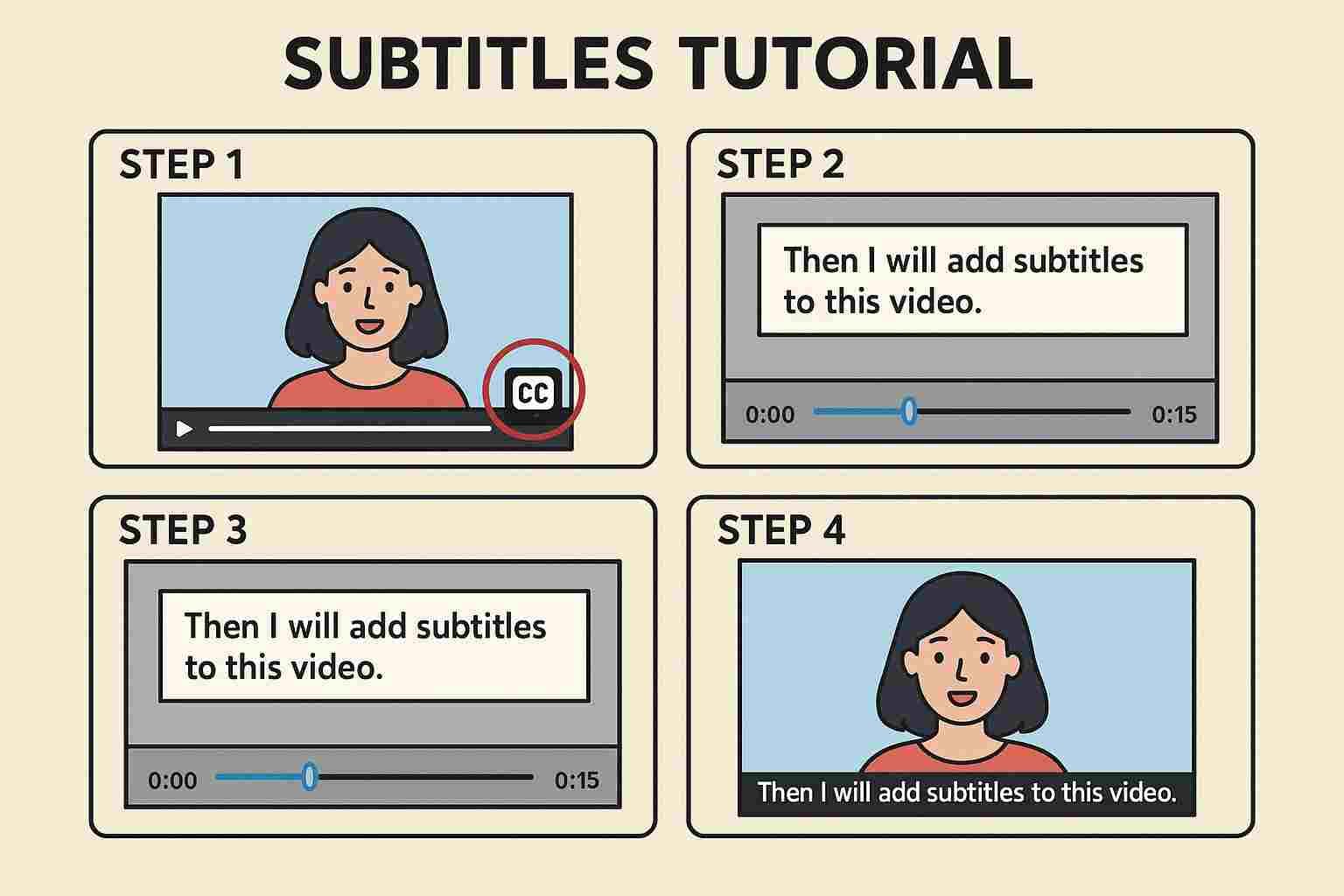
"A picture is worth a thousand words," but sometimes, the right words give a picture its soul. Subtitle Collage—an art form originating from movie screenshot sharing—has become one of the most popular storytelling methods on social media. It's not just text on images; it's an emotional interweaving of visuals and language.
1. What is a Subtitle Collage? Why is it Captivating?
Traditional screenshots capture a single moment with one line of text. A Subtitle Collage, however, takes continuous frames from a scene, crops them vertically, and stitches them together. It usually keeps the full frame for the top image, while subsequent slices retain only the "character/action + subtitle" area, forming a seamless "long image."
- Emotional Buildup: As viewers read from top to bottom, emotions accumulate with the subtle changes in expression and dialogue, creating deep immersion.
- High Information Density: It condenses a complete conversation or monologue into a single image, making it easier to share and save than a video clip.
- Cinematic Texture: This format inherently carries the grain and rhythm of film, perfect for expressing profound, humorous, or healing themes.
💡 Inspiration
Originally popularized by movie bloggers on Tumblr and Weibo for sharing classic quotes, it's now used for travel vlogs, couple dialogues, and even memes.
2. Deep Dive into ImageOnline Tools Features
Our tool is designed specifically for creating high-quality subtitle collages, solving the pain points of complex Photoshop workflows and alignment issues.
2.1 Intelligent Typography System
No more manual positioning of every text line.
- Multi-line Input: Type your dialogue naturally like writing an article; the system splits it by lines automatically.
- Auto Alignment: Supports Left, Center (Movie Standard), and Right alignment. The system calculates the optimal position at the bottom of the image.
- Styling Controls: Rich text controls like Bold, Italic (great for narration), Underline, and Outline (for readability).
2.2 Visual Enhancement & Adaptation
To ensure subtitles are legible on any background, we offer professional visual parameters:
- Caption Area: You can set the height (e.g., bottom 20%) and opacity (e.g., semi-transparent black) of the subtitle background. This prevents white text from disappearing into light backgrounds.
- Font Selection: Built-in Sans-serif and Serif fonts optimized for screen reading, supporting mixed language layouts.
3. Tutorial: Create a Cinematic Long Image in 3 Steps
Whether recreating a classic movie scene or recording a memorable trip conversation, it only takes three steps.
Upload Base Image
Choose a photo with perfect composition and atmosphere as your "base." Landscape orientation (16:9 or 4:3) is recommended for that cinematic look.
Input & Edit Subtitles
Type your lines in the text box on the left. Each "Enter" creates a new subtitle line.
Tip: Keep lines concise. Proper phrasing creates better rhythm.
Generate Collage
Switch to "Collage Mode." You'll see the image magically "duplicated" and stacked like blinds. Adjust the "Lines per Image" parameter to control the length and density of the collage.
4. Advanced: More Than Just Collages
Beyond standard vertical stitching, our tool supports creative modes.
4.1 Polaroid Text Card (Card Mode)
Sometimes you just need one image with a paragraph, styled like an Instagram or RED note card.
Switch to "Card Mode," and the tool generates a whitespace area (customizable color) below the image, arranging your text elegantly. Perfect for poems, quotes, or diary entries.
4.2 Bilingual Subtitles
Want Chinese-English subtitles? Easy!
Type one line of Chinese, followed by one line of English. Use font size controls (global for now, but layout can be tweaked via spacing) to achieve the look.
Note: We are developing inline styling to better support mixed font sizes for bilingual text in the future.
5. Aesthetic Tips
- Font Choice: Sans-serif for serious/documentary styles; Serif or Handwritten for artistic/retro vibes.
- Color Palette: Yellow is the classic Hollywood subtitle color; White with Black Outline is the most versatile. Avoid high-saturation Red/Green/Blue unless for specific artistic effects.
- Negative Space: Don't crowd the bottom. Adjust font size and line height to let the image "breathe."
6. Frequently Asked Questions (FAQ)
- Q: How is the output quality?
- A: 100% original quality. We don't compress your base image, and text rendering is vector-sharp. The generated long image might be large in file size; we recommend using our "Lossless Compression" tool afterwards.
- Q: Can I adjust text shadows?
- A: Yes. Check "Shadow" or "Outline" in the toolbar to significantly improve readability on complex backgrounds.
- Q: Is it suitable for blogs or vertical social feeds?
- A: Perfectly. Vertical collages naturally fit mobile scrolling habits, making them a top choice for visual storytelling content.
Freeze the moment with visuals; tell the eternal with words.