In the digital world, speed is everything. Whether it's for improving website loading speed (a key factor for SEO) or enabling faster social media sharing, image compression is an essential skill. However, many face a dilemma: compress too much, and the image becomes blurry; compress too little, and the file size remains huge. This guide will help you master the art of image compression.
1. Why Do You Need to Compress Images?
Images often account for over 60% of a webpage's total weight. Unoptimized images not only consume user data but also cause slow page loads, directly impacting user retention.
- Boost Web Performance: Google research shows that for every second delay in mobile page load, conversions can drop by up to 20%.
- Save Storage Space: For photographers and designers, thousands of HD raw photos can quickly fill up hard drives and cloud storage.
- Bypass Upload Limits: Many social platforms, application systems, and email attachments have strict file size limits (e.g., 5MB).
💡 Key Concepts
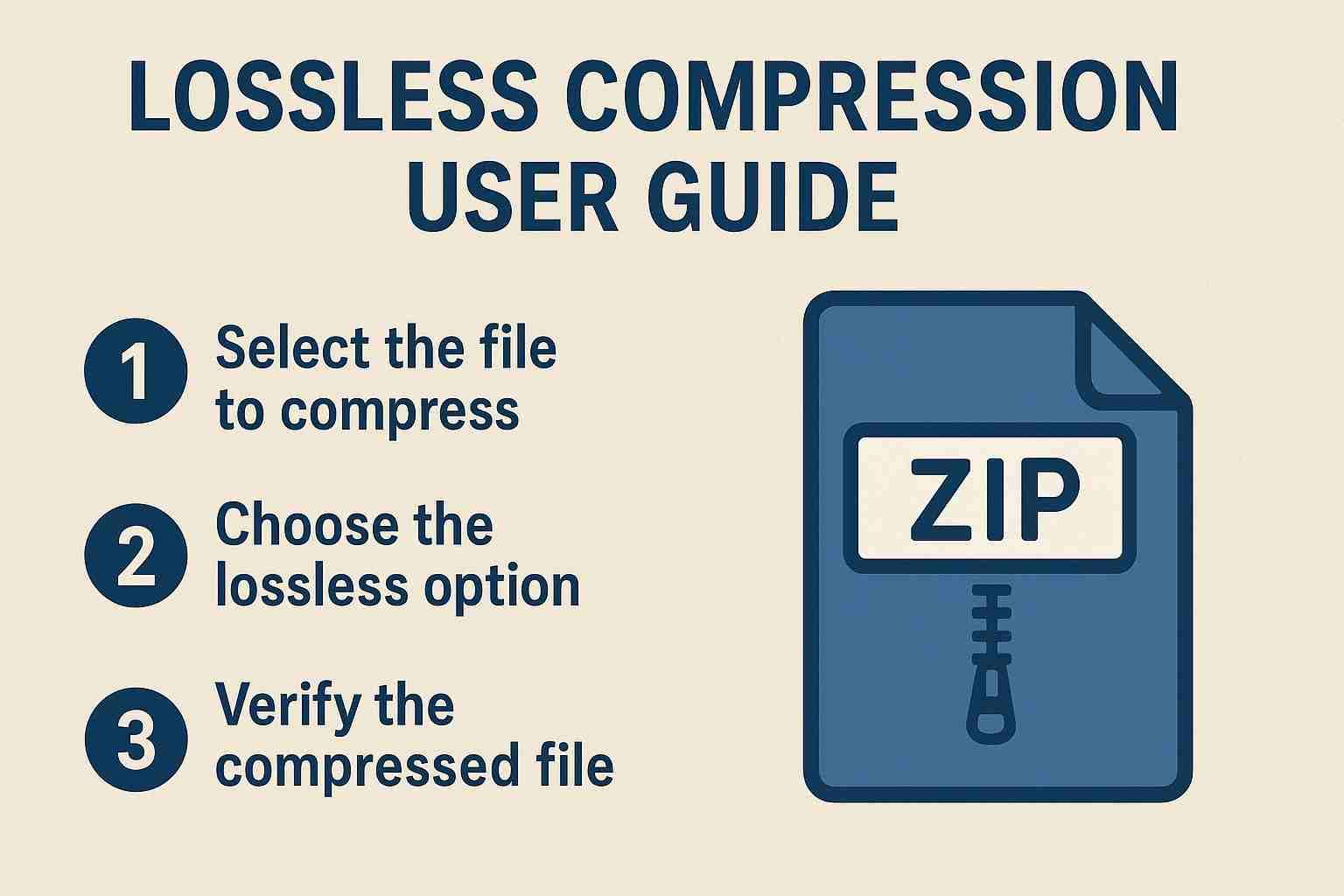
Lossless Compression: Like a ZIP file, it reduces size by optimizing data arrangement. Upon decompression, pixel data is restored 100%. Usually reduces size by 10%-30%.
Lossy Compression: Removes color information or high-frequency details that the human eye struggles to perceive. Can significantly reduce size by 50%-90%, with a slight drop in quality.
2. Common Image Formats and Strategies
Different formats serve different purposes. Choosing the right one is the first step.
2.1 JPEG (JPG)
The most universal format, ideal for photos and complex images with many colors. It uses lossy compression.
- Best For: Photography, e-commerce product images.
- Tip: Adjust the "Quality" parameter. Setting quality to 80% often reduces size by over 50% with negligible visual difference.
2.2 PNG
Supports transparency and uses lossless compression.
- Best For: Logos, icons, screenshots, assets with transparent backgrounds.
- Tip: PNGs can be heavy. Reduce file size by limiting the color palette (e.g., converting 24-bit true color to 256 indexed colors) or converting to WebP.
2.3 WebP
A modern format by Google, offering both the high compression of JPG and the transparency of PNG.
- Best For: Modern web development.
- Advantage: WebP is 25-34% smaller than JPEG and 26% smaller than PNG at equivalent quality. Our tool fully supports WebP conversion.
3. How to Compress Efficiently with ImageOnline Tools
Our tool uses a state-of-the-art browser-based compression engine, combining smart lossy compression with metadata stripping. Here's how to use it:
Import Images
Batch processing is supported. Select multiple JPG, PNG, or WebP images at once. Since processing is local, upload speed depends only on your disk read speed—it's instant.
Set Compression Targets
Two key parameters:
- Quality: Recommended 0.8 (80%). The sweet spot between quality and size.
- Scale: If your original is 4000px wide but you only need it for social media, scaling it to 0.5 (50%) will reduce size exponentially.
Compare & Preview
Our killer feature. Drag the slider to compare original vs. compressed details in real-time. Ensure you are satisfied with the quality before downloading.
Export
Click compress and download. Multiple images may be bundled into a ZIP file.
4. Advanced: Squeezing Every Last Byte
If you need the absolute smallest file size (e.g., for ultra-fast mobile landing pages), try this combo:
- Resize Resolution: Modern phones take 12MP photos (4000x3000). For web display, 1920px width is usually plenty. Halving resolution reduces size by ~75%.
- Strip Metadata (EXIF): Photos contain camera settings, location, and date data. Our tool automatically removes this non-visual data, saving space and protecting privacy.
- Convert Format: Converting PNG or JPG to WebP almost always results in significant weight loss.
5. Frequently Asked Questions (FAQ)
- Q: Will compressed images look blurry when printed?
- A: It depends. If you only use lossless or mild lossy compression (Quality 90%+), prints are usually fine. However, if you downscaled the resolution for screens, large prints might look pixelated. Keep the original for printing.
- Q: Why did my PNG get bigger after compression?
- A: Rare, but possible. If the original was already a highly optimized indexed-color PNG, forcing it back to true color might increase size. Also, very simple images (like geometric shapes) are efficient in PNG; converting them to JPG might add noise and increase size.
- Q: Is my data safe?
- A: Absolutely. Unlike most online tools, ImageOnline Tools processes everything locally in your browser. Your image data never leaves your device.
Slim down your images and speed up the web!