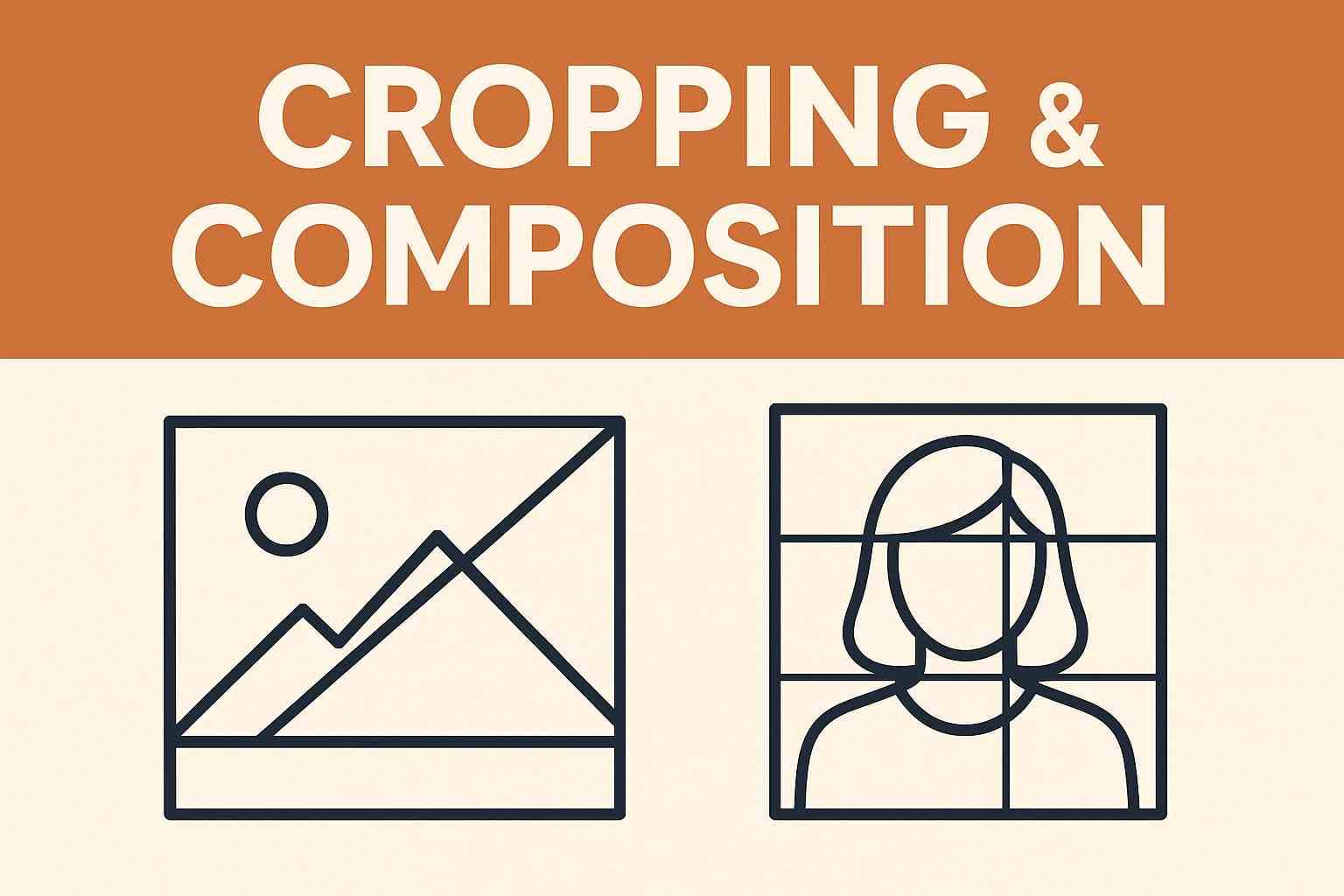
Cropping is the most basic yet transformative step in post-processing. Through recomposition, you can eliminate distractions, highlight the subject, or completely shift the narrative focus. Meanwhile, Image Splitting (or Slicing) is the darling of the social media age, breaking a single image into parts to create unique browsing experiences. This guide explores the endless possibilities of both skills.
1. The Art of Cropping: More Than Just Trimming Edges
Many think cropping is just about making an image smaller. In reality, it is the "art of subtraction."
1.1 Reapplying Composition Rules
- Rule of Thirds: Divide the frame into a 3x3 grid. Crop so that your subject (e.g., eyes, horizon) aligns with the grid lines or intersections. The image instantly becomes balanced and dynamic.
- Center Composition: For symmetrical architecture or portraits, boldly crop out excess background to center the subject, creating a sense of grandeur and stability.
- Close-up: Be brave enough to cut out most of the context. Keeping only details (like rough hands or crow's feet) often creates a more impactful, minimalist composition.
💡 Golden Ratios for Social Media
Different platforms favor different ratios.
- Instagram/WeChat Moments: 1:1 (Square) or 4:5 (Vertical, takes up more screen space).
- YouTube Thumbnail: 16:9.
- Pinterest/TikTok: 9:16.
Our tool comes with presets for all these common ratios.
2. Image Splitting: Rocking the Social Grid
Have you seen those cool Instagram profiles where 9 small images form one giant picture? That's "Grid Slicing."
2.1 Why Use Grid Slicing?
- Visual Impact: On your profile page, a giant image spanning the full width is incredibly eye-catching.
- Engagement: In a single feed post, curiosity drives users to tap on individual slices to see details, increasing interaction.
- Teaser Marketing: Brands often use this to tease new product launches, revealing one piece of the puzzle each day.
2.2 Cropping with ImageOnline Tools
Forget heavy software like Photoshop. Our online tool does it in one click.
Select Mode
Enter the tool and choose "Grid Cut" mode.
Set Rows & Columns
Input the number of Rows and Columns.
- 9-Grid: Set to 3 Rows x 3 Columns.
- 4-Grid: Set to 2 Rows x 2 Columns.
- Insta Panorama: Set to 1 Row x 3 Columns (for a swipeable carousel effect).
One-Click Export
Click download. The tool packages all slices into a ZIP file. Unzip and upload them in order.
3. E-commerce & Web Design: Vertical Slicing
For product landing pages on Amazon or Shopify, a single 10,000px tall image loads slowly and can crash browsers.
3.1 The Necessity of Slicing
- Load Optimization: Browsers can load multiple small images in parallel faster than one huge file. Users see the top content sooner (Lazy Loading friendly).
- Seamless Stitching: Our algorithm ensures pixel-perfect edges. When stacked vertically on a webpage, users won't notice any seams.
How-to: Choose "Fixed Height Cut" in our tool (e.g., slice every 1000px) to process long landing pages instantly.
4. Frequently Asked Questions (FAQ)
- Q: Does cropping reduce quality?
- A: Cropping is essentially discarding pixels. If you crop a 200px area from a 4000px image, that area only has 200px worth of data. While it looks like you "zoomed in," the pixel count decreases. Our tool performs lossless cropping, meaning we don't re-compress the pixels you choose to keep.
- Q: What is the file order?
- A: Files are usually named by `row_col` or sequence (e.g., `tile_0_0.jpg`, `tile_0_1.jpg`), representing Row 1 Col 1, Row 1 Col 2, etc. Upload them from left to right, top to bottom.
- Q: Supported formats?
- A: We support JPG, PNG, WEBP, SVG, and more. Transparency in PNGs is fully preserved after slicing.
Composition defines the baseline; creativity sets the limit.